Showing posts with label Tricks. Show all posts

Saturday, 3 October 2015

3 Fun Ways To Practice Your Coding Skills


Hello and welcome its been a while since i have posted a new article i was on a project but now i'm back so get ready for some mind blowing technology news, tips and tricks. Well lets get started with how you can sharpen your programming skills.
If you are a student of computer science just started learning coding and want to be a good programmer you have come to right post. In this post we will take a view of sites using which students from all over the world are learning latest programming and technical skills.
The first one on our list is:

CODEWARS - Sharpen Your Skills Through Challenges


You Will Learn:   javaScript, Ruby, Python, CoffeeScript, Haskell, Clojure.

This site is really making difference in teaching methodologies i can tell you from my personal experience. A student of science must give it a hit. You might not be familiar with all the languages but that's not the problem in fact it's variety and beauty of the field you have just stepped in. Just Stick to the one you find interesting and useful.
Fighting against an opponent gives you room to work in better and faster way, that's how mechanism of CODE-WARS works. It's a Platform for programmers to improve and scale their daily learning skills.


DASH - Perfect o For web designers


You Will Learn: CSS, HTML, javaScript.

Through fun projects in your browser you will learn something essential in building websites. Do you know more than 1 million new sites come online every week so here imagine how much jobs are available there in market for web developers/designers. Every new business startups, companies, organizations require a attractive, effective interfering official website to be developed, designed and maintained to get going in this era of Global Market.
You got the point future web designer give it a hit.

Programmr - Learn What You Love


You Will Learn:   19+ tech from SQL to Android, IOS, Ajax, C#, C++, Games, HTML, PHP, Java, JQuery and much more..

Basically Programmer is a simulator for learning and testing coding skills the platform is so versatile it covers almost all the building block require for any platform whether its android, IOS, Web, Structured programming, java, database etc.
Programmr makes it fun and mind catching through there coding challenges and interesting motivational exercises. On site according to our latest count more than 5000+ project have been completed.
You get gifts, Award for solving specific problems too here.

Thanks For Visiting if you find the information useful Subscribe to our emails or like our Facebook page to stay connected with our latest posts.
You might like:


Tuesday, 11 August 2015

Format USB and Remove All Errors in One Go Using Command Prompt

How To Format USB using Command Prompt ( Clean MBR )

  • Facing slow transfer speeds? 
  • Unable to make USB boot-able for installing windows?
  • Facing errors which seems like is virus but it's not?

Today our main focus is on how to format USB properly.
There are number of Factors on which performance of USB pen-drive depends Read Our article on " Link of Speeding up USB "

OK! you must ask: Why Format through Command Prompt?
You should kept this in mind that still some stains of corrupt data remains in the USB after formatting it through windows defined procedure.

Lets get Started!
Follow steps below an show your friends how smart you are:

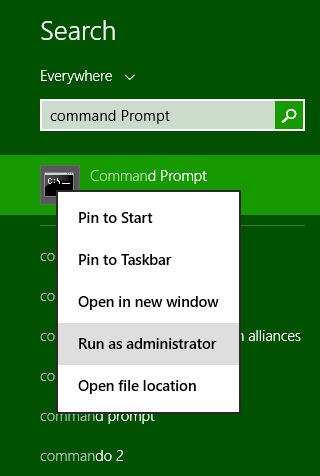
1- Go to > Search > for Command prompt.

2- Open Command prompt as Administrator > and type diskpart

3- type list disk  >Press enter after every time you type

4- type select disk and number of your USB disk( like select disk 1)
   NOTE !  be careful in selecting disk don't select your hard drive accidentally to avoid this see size of your selected disk.

5- type clean

6- type create partition primary

7- type Select partition 1

8- type active

9- type format quick fs=fat32

10- type assign

11- type exit to exit the diskpart utility

12- type exit to close command prompt

Done! Now If you check properties of your USB there will be 0 bytes used Space and MBR of USB is cleaned as well.

 Now you can easily make your USB Bootable with no problems. 


Tuesday, 19 May 2015

Save Your Eyes from Computer Screen Using Flux

Eye's Safety from Strain by Computer Screen

Below is the Pic taken with Flux ON and Flux OFF. difference is clear.

You may have felt strain on your eye's after or while using computer for long duration and definitely be looking for a solution. You are lucky you have come to write place. just go through the article. in no-time you will be surprised to know that how you can avoid damage to your eye's and increase your work productivity.
There's a Software named Flux described below.

WHAT IS FLUX AND WHY DO YOU NEED IT?

Its a Simple but intelligent and very useful software compatible with Windows,Linux, Mac, iPhone, iPad which limits the extra glow of your Screen and replaces it with warm tone.
At night it will automatically switch to a brightness tone comfortable for you eye's, and in the morning there will be no difficulty in seeing towards your Laptop's screen as it will adjust that as well.
So the question is:

HOW FLUX WILL YOU WHAT TIME IS IT?


As soon as you will start it after installation it will search your current location through Google and works according to your present time that can be Sunrise/sunset etc(or you can also manually type your location) Through knowing this Flux automatically sets your Color temperature , brightness tone of your computer screen.
don't worry it's free to use and it's size is only 3.9MB
Download Link: https://justgetflux.com/

Thanks For Reading It will be helpful!
Do Subscribe to Emails If You Like it!

Other Popular Articles:


Sunday, 22 March 2015

Launch Your Task-bar Programs Without Clicking them !

Launch Your Task-bar Programs Without Clicking them !

Amaze your friends by showing them COOL computer tricks.
Also this trick is very useful when you can;t use your Mouse-Pad you can simply use your keyboard to Launch your Google Chrome , VLC media player , Calculator , Skype or any thing you have pinned to Task-bar, isn't that amazing :)
DO THIS BY :

every program to the right of start button has a unique numerical value assigned for example in the above picture internet explorer is at place ' 1 ' , Google chrome is at ' 2 ' and So on... 
Pressing the windows Key + the number of program to the right of Start button launches that Program
e.g:  pressing WIN key Plus ' 2 '  will launch Google-Chrome !!!


Change Color Of Your Windows Folders                  


Sunday, 15 March 2015

Use Your USB as RAM In PC

How To Use USB as RAM in Your PC and Increase It's Performance!!


Want Smooth PC performance ? No Problem! Today i'll tell you How you can maximize your PC performance by Using your USB Pen drive as a RAM. 


Just Follow Simple Steps and Enjoy the Games which Require Higher Ram!! in Recommended High Settings. 
Go through the pictures i have given below for your easiness.


1- Plug in Your USB Drive. Go to it's Properties


2- Click on-  ReadyBoost  option as Shown in Screen shot below!


SUBSCRIBE TO OUR EMAILS!!
FOLLOW ME ON GOOGLE PLUS !!

THANKS!!!      FOR MORE!!


3- Check " use this device" and Apply !! Enjoy


YOU MAY ALSO LIKE:
How To Change Colors of Folders in Windows
10 Foods For Improving Brain Intelligence
Install Windows from USB
Find your Lost android

SUBSCRIBE TO OUR EMAILS!!
FOLLOW ME ON GOOGLE PLUS !!

THANKS!!!


Tuesday, 3 March 2015

8 Amazing Tricks You Can Do With Google

8 Amazing Tricks You Can Do With Google


1- Type "Google gravity" and see what happens


2- Use Google as a Scientific Calculator
    or you can also use it as "Tip Calculator"


3-Play a Game: Search for"Atari Breakout" on Google images Search and enjoy!


4- Type "Zerg rush" and play with broken falling Search results.


4- Tired of Seeing Google Sitting.. Give it a Roll :)
Just Type "Do a barrel roll" and you will See!

5- Get Information about Flights Departure and Arrivals Timings

6- Use Google as a Quick Converter for almost everything
   i.e  from\ Pound - Kilo's , Height from Meters to cm etc.

7- Use it as a Translator n Chat with your French buddy on Facebook.
8- No need to install weather forecast apps anymore, Google can Tell you Weather from all over the World.

Popular among Visitor:


SUBSCRIBE TO OUR EMAIL UPDATES!

THANKS! :)


Saturday, 28 February 2015

How To Change Color Of Folders in Windows

HOW CAN WE CHANGE COLOR OF FOLDERS


Below is the Screen shot of my PC's Colored folders. in 1 Minute it can be yours as well.

Although windows have allot of great visual features but there is no option to change color of folders.
Colored folders make your PC more attractive and easier to navigate. follow 1 minute procedure below to do this cool trick.

Tools Required:

Download this Small but Smart software called "Colorizer" from here: Colorizer   or 

Steps:

  • Download and install the software.
  • When installing the COLORIZER be attentive it may ask to install other software with it also Disable those or uncheck those boxes and install only COLORIZER.
  • When done istalling, Right click any folder to change it's Color.
After right click select "Colorizer" option from box.

  • Select the Color you want to apply.

  • C0OL!! right. Amaze your friends by showing them your laptop screen. Share this trick with them
  • Thanks for reading. Enjoy!
Users also liked:


Monday, 23 February 2015

Make your PC welcome you every-time you start windows in Computerized Voice

Make your PC welcomes you when you Start it!!


You definitely have watched movies right? Have you always loved the way how Computers in movies welcome their users by calling out their names? I bet that you too would want to know how you can achieve similar results on your PC and have a computer said welcome. 

Then you are at the right place, this article describes exactly how you can make your computer welcome you 

Make Windows Greet you with a Custom Voice Message at Startup.

To use this trick, follow the instructions given below:-

  1. Click on Start. Navigate to All Programs, Accessories and Notepad.
  2. Copy and paste the exact code given below.
_____________________________________
Dim speaks, speech
speaks="Welcome to your PC, Username"
Set speech=CreateObject("sapi.spvoice")
speech.Speak speaks
_____________________________________

3. Replace Username with your own name. 
     4.  Click on File Menu, Save As, select All Types in Save as Type option, and save the file as Welcome.vbs
     5.  Copy the saved file. 
     6.  Navigate to  C:\Users\ {User-Name}\AppData\Roaming\Microsoft\Windows\Start Menu\Programs\Startup (in Windows 8, Windows 7 and Windows Vista) and for windows xp C:\Documents and Settings\All Users\Start Menu\Programs\Startup
    7. Past the saved file you have copied. 
You have done GREAT!!   next time you start your computer, windows will welcome you in computerized voice.
You May Also Like:
Make your PC fast in 3 easy steps.
How to Install windows using USB
Microsoft is about to release DirectX 12